
WiFi speed is crucial for smooth streaming, online gaming, video calls, and fast downloads on your phone. Knowing your actual speed helps identify whether the problem is with your internet provider, router, or the phone itself. Checking WiFi speed on mobile is quick and simple using built-in tools or free apps.
This guide explains the easiest methods for both Android and iPhone users.
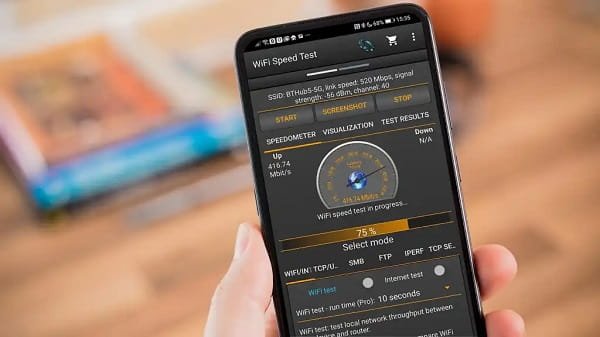
Why Check WiFi Speed?
- Verify if you are getting the speed promised by your ISP.
- Troubleshoot slow internet, buffering, or lag.
- Compare WiFi vs mobile data performance.
- Decide whether to upgrade your plan or router.
- Test different locations in your home or office.
Note: Speed can vary due to distance from router, interference, number of connected devices, and network congestion.
1. Best Method: Use Speedtest App (Recommended)
The most accurate and popular way is using the Speedtest by Ookla app.
Steps for Android and iPhone:
- Open the Google Play Store (Android) or App Store (iPhone).
- Search for “Speedtest by Ookla” and install the official app.
- Open the app and grant necessary permissions (location may be required for best results).
- Tap the big GO button in the center.
- Wait for the test to complete (usually 20–40 seconds).
Results shown:
- Download Speed (how fast you receive data)
- Upload Speed (how fast you send data)
- Ping (latency/response time — lower is better)
- Jitter and Packet Loss (in advanced view)
A good home WiFi speed is usually 50–100 Mbps download or higher. For basic use, 25 Mbps is often enough.
Alternative Apps:
- com (by Netflix) — Simple and fast.
- Google Speed Test (search “speed test” in Chrome).
- nPerf or Meteor for detailed analysis.
2. Check WiFi Speed Without Installing Apps
On Android:
- Open Settings → Network & internet → Internet (or Wi-Fi).
- Tap the connected WiFi network.
- Some phones (especially Samsung, Pixel, Xiaomi) show basic link speed (e.g., 866 Mbps — this is theoretical maximum, not real speed).
- For real speed, open Chrome browser and go to fast.com or speedtest.net.
On iPhone:
- Go to Settings → Wi-Fi.
- Tap the (i) icon next to your connected network.
- You will see basic info, but not real speed.
- Open Safari and visit fast.com for instant results.
3. Browser-Based Speed Test (Quick & No App Needed)
- Open Chrome, Safari, or any browser on your phone.
- Type one of these in the address bar:
- com
- net
- com → Search “speed test”
- Tap the Run Speed Test or GO button.
- Results appear within seconds.
This method is useful when you don’t want to install anything.
4. Advanced Checks
- Multiple Tests: Run the test 2–3 times at different times of the day and in different rooms.
- Download & Upload Separately: Some apps let you test only download or upload.
- 5GHz vs 2.4GHz Band: Connect to both bands (if available) and compare speeds. 5GHz is usually faster but has shorter range.
- Background Apps: Close all apps before testing for accurate results.
Tips for Accurate WiFi Speed Test
- Connect directly to WiFi (disable mobile data).
- Stay close to the router (within 5–10 meters).
- Avoid testing during peak hours (evenings).
- Turn off VPN before testing.
- Use WiFi 5 or WiFi 6 routers for better performance.
- Restart your router and phone before testing.
- Check how many devices are connected to the same WiFi.
How to Improve Slow WiFi Speed
- Move closer to the router.
- Switch to 5GHz band.
- Update router firmware.
- Use a WiFi extender or mesh system.
- Change WiFi channel in router settings.
- Limit background data usage on your phone.
- Restart router once a week.
Understanding Your Results
Download Speed:
- 0–25 Mbps: Basic browsing and SD video.
- 25–100 Mbps: HD streaming and online classes.
- 100+ Mbps: 4K streaming, gaming, large downloads.
- Upload Speed: Usually lower than download. Important for video calls and uploading files.
- Ping: Below 50 ms is excellent for gaming and video calls.
- Under 10 Mbps? Contact your internet service provider.
Common Issues
- Speed lower than expected: Interference from walls, microwaves, or neighboring WiFi.
- Inconsistent speed: Too many devices connected.
- App shows different results: Different servers and testing methods can vary slightly.
- No WiFi option: Make sure WiFi is turned on and you are connected.
Conclusion
Checking WiFi speed on your mobile is fast and easy. The simplest ways are:
- Install Speedtest by Ookla app and tap GO.
- Visit com in your browser.
Regular speed checks help you get the most out of your internet connection. Save this guide and test your WiFi speed today. Understanding your speed allows you to fix problems quickly and enjoy better performance for all your online activities.