
WhatsApp calls (voice and video) are a big part of daily communication in India — for family talks, office meetings, online classes, or business deals. Sometimes you accidentally delete call history, clear chats, or reinstall the app, and important call records disappear.
Unfortunately, WhatsApp does not officially allow viewing deleted call history easily. Call logs are stored locally on your phone and in backups. Once deleted, recovery is only possible if you have a previous backup.
This guide explains simple, safe methods for Android and iPhone users (as of 2026).
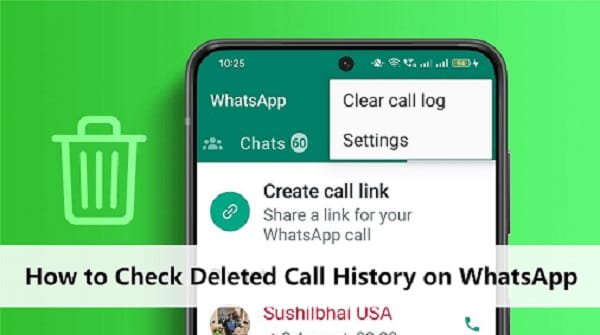
Why Do You Need Call History?
- Check missed calls from family or clients.
- Verify call timings for important conversations.
- Resolve disputes or confirm meeting details.
- Parental monitoring or personal records.
- Legal or official requirements in some cases.
Reality Check: Without a backup made before deletion, full recovery is very difficult or impossible.
1. Check if Call History is Really Deleted
Before trying recovery:
- Open WhatsApp.
- Tap the Calls tab at the bottom.
- Scroll through the list. Sometimes calls are hidden but not fully deleted.
- Pull down to refresh the list.
If nothing appears, proceed to recovery methods.
2. Restore from Backup (Most Reliable Method)
This works only if you enabled backups earlier.
For Android (Google Drive Backup)
- Make sure you are connected to the same Google account used for backup.
- Uninstall WhatsApp (Settings → Apps → WhatsApp → Uninstall).
- Reinstall WhatsApp from Google Play Store.
- Open the app and verify your phone number.
- When prompted, tap Restore (it will show the backup date).
- Wait for the restore to finish. Your old call history should appear in the Calls tab.
Check Backup:
- Go to WhatsApp → Settings → Chats → Chat backup.
- Note the last backup date and size.
For iPhone (iCloud Backup)
- Uninstall and reinstall WhatsApp from App Store.
- Verify your phone number.
- Tap Restore Chat History when prompted.
- Wait for the process to complete.
Check iCloud Backup:
- Go to iPhone Settings → [Your Name] → iCloud → Manage Storage → WhatsApp.
Important: Restoring will replace current chats and calls with the backup version. You may lose newer data.
3. Check Local Backups on Android (Without Cloud)
- Open your phone’s File Manager (or install “Files by Google”).
- Go to Internal Storage → WhatsApp → Databases.
- Look for files like msgstore.db.crypt14 or older backups.
- If you find an old file, you may need advanced tools or apps to restore it (not recommended for beginners).
4. Check Phone’s Native Call Log (Limited Help)
- Open the default Phone app.
- Go to Recents or Call History.
- Some WhatsApp calls may show with the WhatsApp icon.
This only shows basic info (date & time), not full WhatsApp call details.
5. Use Third-Party Recovery Tools (With Caution)
Tools like:
- iToolab WhatsApp Recovery
- Wondershare Dr.Fone
- Tenorshare UltData
- Gbyte Recovery
Warning for Users:
- These tools may cost money.
- Risk of data privacy breach.
- Only download from official websites.
- Not 100% successful, especially without root/jailbreak.
- Avoid unknown APKs to prevent malware.
Recommendation: Try official backup restore first.
6. Prevent Future Loss of Call History
Enable automatic backups:
- Android: WhatsApp → Settings → Chats → Chat backup → Back up to Google Drive (daily/weekly).
- iPhone: Enable iCloud backup.
- Take manual backups regularly.
- Don’t clear chats or uninstall without backing up.
- Use WhatsApp’s “Export Chat” for important conversations (though it doesn’t fully export calls).
Common Issues & Troubleshooting (Faced by Users)
- Backup not found: Wrong Google/iCloud account or old backup deleted.
- Restore option not showing: No backup available before deletion.
- Storage full: Free up space before restoring.
- Dual SIM phones: Check both numbers separately.
- After Factory Reset: Recovery is almost impossible without cloud backup.
- Network Issues: Use stable Wi-Fi during restore (common problem during power cuts or low data).
- Old Phone: Older Android versions have smaller backup limits.
Extra Tips for Users
- Students & Professionals: Keep records of important client or college calls by taking screenshots of call logs regularly.
- Family Use: Teach elders to enable backups.
- Business: Many use WhatsApp Business — enable backups there too.
- Data Saver: Backups can consume mobile data — use Wi-Fi.
- Privacy: Call history is end-to-end encrypted; WhatsApp cannot recover it for you.
- Legal: In rare cases, contact your mobile operator for tower logs (not WhatsApp-specific).
- Popular Models: Methods work on Samsung, Xiaomi, Realme, Vivo, Oppo, and iPhones commonly used in India.
- Low Storage Phones: Many budget phones have limited space — clean regularly.
Limitations
- WhatsApp officially states that deleted call history cannot be restored without a prior backup.
- No way to recover calls from months ago without very old backups.
- Deleted backups in Google Drive/iCloud are gone forever.
Conclusion
The best way to check WhatsApp call history after deletion is to restore from a Google Drive (Android) or iCloud (iPhone) backup. If no backup exists, recovery is usually not possible.
Always enable automatic backups to avoid this problem in the future. Save this article and check your backup settings today.
Share this guide with friends and family via WhatsApp groups — it can save a lot of trouble during important situations. Stay connected safely!