
In our daily life, we connect to many WiFi networks — at home, office, cafes, or friends’ places. Forgetting a saved WiFi password is very common. Luckily, both Android and iPhone allow you to view saved WiFi passwords directly from your phone without needing a computer.
This guide explains simple, step-by-step methods to check saved WiFi passwords on your phone.
Why Check Saved WiFi Password?
- Share the password with family or guests easily.
- Reconnect to the same network on another device.
- Troubleshoot connection issues.
- Manage multiple saved networks.
Note: You can only view passwords for networks you have previously connected to and saved.
1. Check WiFi Password on Android Phones
Android makes it very easy from version 10 onwards.
Method 1: Through Settings (Recommended)
- Open the Settings app.
- Tap Network & internet (or Connections on some brands).
- Tap Internet or Wi-Fi.
- Tap Saved networks or Saved Wi-Fi networks.
- Select the WiFi network whose password you want to see.
- Tap Share or the gear icon.
- Authenticate using your screen lock (PIN, pattern, password, or fingerprint/face unlock).
- The WiFi password will be visible below the QR code.
Brand-Specific Tips:
- Samsung: Settings → Connections → Wi-Fi → Tap the connected or saved network → Share.
- Xiaomi / Redmi / Poco: Settings → Wi-Fi → Saved networks.
- Realme, Oppo, Vivo: Similar path under Wi-Fi settings.
- Google Pixel: Same as standard Android.
Method 2: Using QR Code
After tapping Share, scan the QR code with another phone’s camera to connect instantly without typing the password.
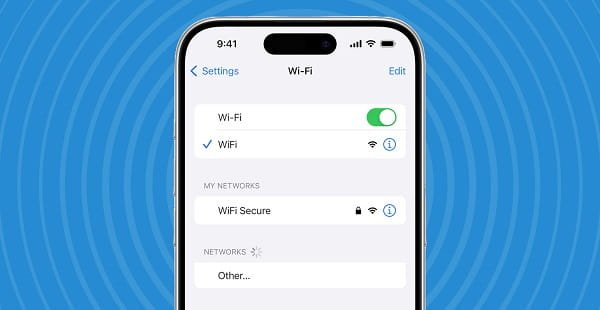
2. Check WiFi Password on iPhone (iOS)
Apple added this feature starting from iOS 16.
- Open the Settings app.
- Tap Wi-Fi.
- Tap the connected or saved network (i icon next to the network name).
- Tap Password.
- Authenticate with Face ID, Touch ID, or your device passcode.
- The WiFi password will be revealed.
Older iOS versions (before iOS 16): You cannot view the password directly. You will need to use a Mac computer linked to the same Apple ID or reset the network.
3. Check WiFi Password Using Router Admin Page
This method works if you are connected to the network.
- Open any browser on your phone (Chrome, Safari, etc.).
- Type your router’s IP address in the address bar:
- Common addresses: 192.168.1.1, 192.168.0.1, or 192.168.1.254
- Log in using router credentials (default is often admin / admin or admin / password — check the router sticker).
- Go to Wireless, WiFi Settings, or Security section.
- Look for the Password, Passphrase, or WPA Key.
Tip: Search Google for your router model + “admin login” if you don’t know the IP.
4. View All Saved WiFi Passwords (Advanced)
On Android:
- Some phones allow viewing all passwords at once through developer options or third-party apps like “WiFi Password Viewer” (root may be required on older versions).
On Rooted Android or using Apps:
Avoid unknown apps. Stick to official settings for security.
5. Share WiFi Password Without Showing It
- Android: Use the QR code sharing option.
- iPhone: Tap Share Password when another Apple device is nearby.
This is perfect for guests.
Troubleshooting Common Issues
- Password not visible? Make sure you are connected to the network or it is saved. Authenticate properly with screen lock.
- Option missing? Update your phone to the latest Android or iOS version.
- Forgot screen lock? You may need to reset your phone’s lock first.
- Corporate or School WiFi: Passwords may be managed by admin and not visible.
- After Factory Reset: All saved passwords are cleared.
- Dual Band (2.4GHz / 5GHz): Check both bands if your router uses separate names.
Security Tips
- Always use strong, unique WiFi passwords.
- Change default router admin password for better security.
- Forget network after use on public WiFi.
- Enable WPA3 security on your router if available.
- Be careful while sharing passwords — use QR code instead of typing.
- Regularly review saved networks and remove old ones.
Conclusion
Checking a saved WiFi password on your phone is quick and straightforward.
The easiest ways are:
- Android: Settings → Saved networks → Share
- iPhone: Settings → Wi-Fi → Tap network → Password
These built-in features eliminate the need to reset routers or call for help. Always keep your phone updated for the latest privacy and security improvements.
Save this guide for future reference. Knowing how to view WiFi passwords can save you time and hassle in many situations. Stay connected safely!