
Forgetting a WiFi password is very common, especially when you need to connect another device. Android phones make it easy to view the password of the currently connected WiFi network or any previously saved networks. This feature is available on Android 10 and above.
Here’s a simple, step-by-step guide to check the password of your connected WiFi network.
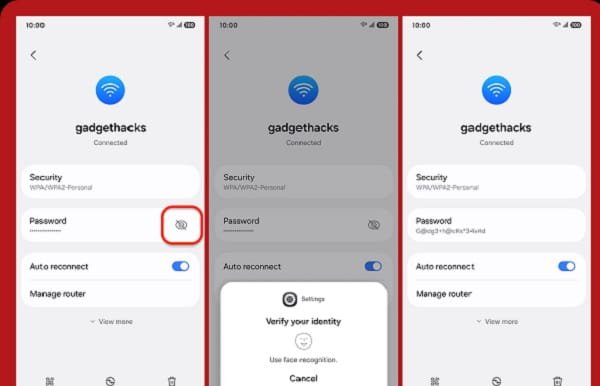
Method 1: Check Connected WiFi Password (Recommended)
- Open the Settings app on your Android phone.
- Tap on Network & internet (or Connections on Samsung phones).
- Tap Internet or Wi-Fi.
- Tap the connected WiFi network (it will show “Connected” below the name).
- Tap the gear icon (⚙️) or Share button next to the network.
- You may need to authenticate using your phone’s screen lock (PIN, pattern, password, fingerprint, or face unlock).
- The WiFi password will now be visible in plain text below the QR code.
You can also tap Share to generate a QR code that others can scan to connect without typing the password.
Method 2: Check Any Saved WiFi Password
- Go to Settings → Network & internet → Internet/Wi-Fi.
- Tap Saved networks (or Saved Wi-Fi).
- Select any WiFi network from the list.
- Follow the same steps: Tap the gear icon or Share → Authenticate → View password.
Brand-Specific Steps
- Samsung Galaxy: Settings → Connections → Wi-Fi → Tap connected network → Share.
- Google Pixel: Settings → Network & internet → Internet → Tap network → Share.
- Xiaomi / Redmi / Poco: Settings → Wi-Fi → Tap the connected network (i icon) → Share.
- Realme, Oppo, Vivo: Similar path under Wi-Fi settings.
- OnePlus: Settings → Wi-Fi & network → Wi-Fi → Connected network.
Method 3: Using Browser (No Extra Steps)
If the above option is not visible:
- Open Chrome browser.
- Search for “WiFi password viewer” or simply go to your router’s admin page (usually 192.168.1.1 or 192.168.0.1).
- Log in with router username and password (often “admin” / “admin”).
- Go to Wireless or Security section to see the current WiFi password.
Important Notes
- You can only view passwords for networks you have previously connected to and saved.
- The password is hidden for security reasons — you must authenticate with your phone’s lock screen.
- On older Android versions (below 10), this feature is not available. You may need to use third-party apps or router login.
- If you are not connected to WiFi, go to Saved networks to view passwords.
Troubleshooting
- Share option missing? Make sure you are on the latest Android version. Update your phone in Settings → System → System update.
- Authentication failed? Enter your correct screen lock PIN/pattern.
- Password not shown? Try forgetting the network and reconnecting, then check again.
- Corporate/School WiFi: Passwords are often managed by the administrator and may not be visible.
- No option at all? Your phone manufacturer may have restricted this feature. Use the router login method.
Security Tips
- Always use a strong WiFi password.
- Change your router’s default admin password.
- After viewing, you can share via QR code instead of telling the password verbally.
- Regularly review and remove old saved networks you no longer use.
- Be careful while sharing your phone for password viewing.
Conclusion
Checking the connected WiFi password on Android is quick and straightforward using the built-in Settings menu. Just go to the connected network, tap Share, and authenticate with your screen lock.
This feature saves a lot of time when connecting new devices like smart TVs, laptops, or guest phones. Keep your phone updated to enjoy the latest security and convenience features.